Best Wireless Presentation Clickers in 2026 Expert Picks and Reviews

You stand behind your laptop. The room goes quiet. Every slide change means a trip back to the desk. That kills your flow. A good Best Wireless Presentation Clickers fixes the problem fast. It lets you walk, point, and talk while your slides move on cue.
Choosing one isn’t simple, though. Clickers, air mice, TV remotes, and phone apps all promise freedom. This guide compares them in plain words. You’ll see the best presentation remotes for pros, teachers, and budget buyers. You’ll also get a full Logitech Spotlight vs R800 showdown and a clear buying checklist.
What Is a Presentation Remote and How Does It Work?
A presentation remote control is a small handheld device. It moves your slides forward and back from a distance. Think of it as a mini keyboard with only a few keys. Most models send the same signals as the arrow keys. Your computer reads them as normal input. That’s why a slide presentation remote works with so many apps. It also explains how to control slides remotely without special skills. You plug it in, press a button, and the slide changes.
The link between remote and laptop comes in two main forms. A USB presentation remote uses a tiny wireless USB receiver and RF wireless technology. A Bluetooth presentation remote pairs straight with your device and needs no dongle. Both give you next and previous slide controls. Many models add a timer, a blackout key, or a pointer. Plug-and-play setup means you often need no software at all. However, extras like highlighting usually need a small app. Here’s the basic signal path.
Remote → Receiver or Bluetooth → Laptop → Projector or Screen
Types of Presentation Remotes
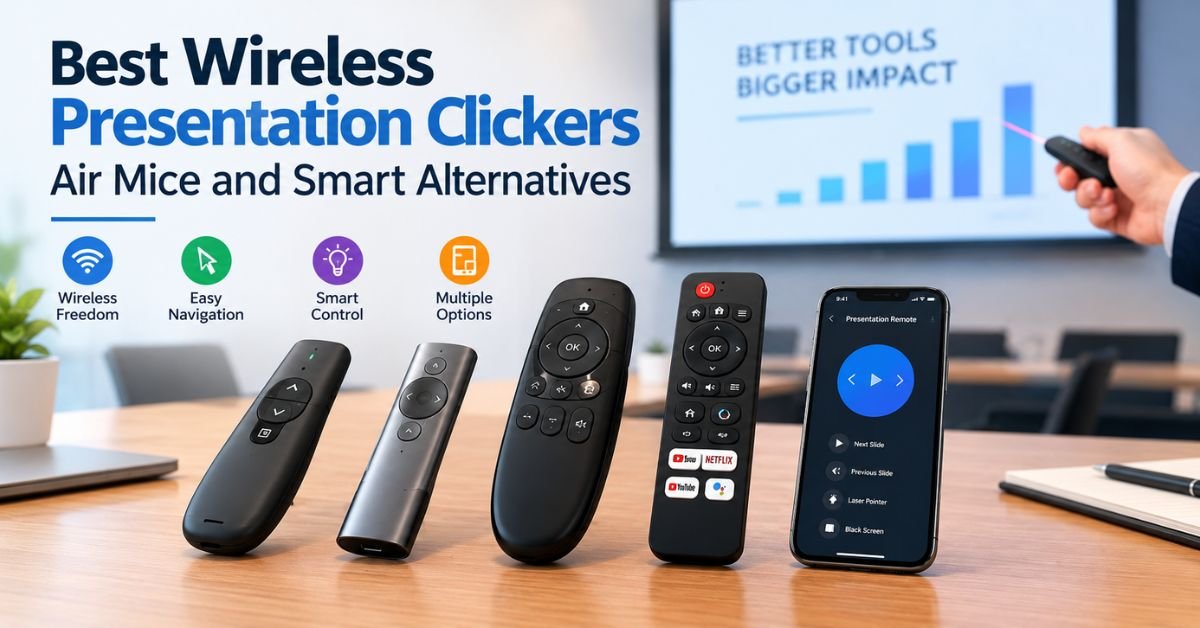
Not every remote fits every stage. Some are simple and cheap. Others track your hand in the air. Some even live inside gear you already own. Knowing the five main types helps you shop smarter. It also saves you from paying for features you’ll never touch. Each type below solves a different problem.
Next, the table gives you a fast side-by-side view. Use it as a map before you read the details. Range figures are typical values and vary by model.
| Type | Best For | Typical Range | Main Drawback |
| Traditional clicker | Simple slide control | 10 to 30 meters | Few extra tools |
| Remote with laser pointer | Small rooms and classrooms | 15 to 30 meters | Dot is hard to see on bright screens |
| Air mouse remote | Demos and software tours | 10 to 15 meters | Takes practice |
| Smart TV remote | Casual home or office use | Short range | Limited slide control |
| Smartphone app | No-cost backup | Depends on Wi-Fi or Bluetooth | Notifications and battery drain |
Traditional Presentation Clickers
A presentation clicker in its classic form has two or three buttons. You get next, back, and sometimes a blackout key. Best Wireless Presentation Clickers That’s it. The simple design is the strength. You can learn it in ten seconds. A PowerPoint clicker like this rarely fails because it has so few parts. Many run on an AAA battery-powered clicker design. You swap the cell and carry on. If you want calm and reliable slide control, this type is hard to beat.
Wireless Presentation Remotes with Laser Pointers
A presentation remote with laser pointer adds a bright dot to your toolkit. You aim it at a chart and the audience follows. Most use a red laser pointer. Some use a green laser pointer, which looks brighter to the human eye. A presentation clicker with laser pointer shines in small rooms and classrooms. However, the dot can vanish on big LED screens. It can also shake if your hand isn’t steady. Treat the laser pointer for presentations as a helpful extra rather than the main reason to buy.
Air Mouse Remotes
An air mouse remote senses how you move your hand. It turns that motion into on-screen cursor control. You can click links, open files, and circle items. That makes it great for software demos. Now think about air mouse vs presentation clicker. The clicker wins on speed and simplicity. The air mouse wins on freedom to roam the screen. Beginners often find the air mouse twitchy at first. A few practice runs usually fix that. For slide-only talks, you may not need the extra power.
Smart TV Remotes for Presentations
Many offices now show slides on a smart TV. A smart TV remote for presentations can help in the right setup. For example, a TV remote may control casting or screen mirroring. However, most TV remotes can’t move slides on their own. They control the TV, not your slide app. Some apps pair with the TV and add basic remote slide control. Test the setup before your meeting. If your TV and slides don’t talk, a separate clicker will save the day.
Smartphone Apps as Presentation Remotes
A smartphone presentation remote costs nothing if you already own the phone. Apps from Microsoft, Google, and Apple let you swipe through slides. Here’s how to use a smartphone as a presentation remote. First, install the app and sign in. Next, link the phone by Bluetooth or Wi-Fi. Then open your deck and tap next. The risks are real, though. A text message can pop up mid-talk. A low battery can end your session. Use airplane mode with Bluetooth on, and keep a backup clicker handy.
Best Presentation Remotes for Different Needs
The right remote depends on who you are and where you speak. A keynote speaker needs rock-solid range. A teacher needs something simple. An online host needs smooth pairing. A student on a budget needs low cost. This section matches each need to a smart pick. It uses clear criteria: reliability, range, comfort, and price.
The table below shows quick matches. Prices are rough guides and change by region. Always check a current listing before you buy.
| Need | Suggested Pick | Why It Fits | Approximate Price |
| Professional stage use | Logitech Spotlight | Rechargeable, highlight tools, long range | Around $100 to $130 |
| Teachers and students | Logitech R500 or similar | Simple and sturdy | Around $30 to $50 |
| Online meetings | Bluetooth clicker with highlighting | Easy pairing, shows in screen share | Around $50 to $100 |
| Tight budget | Basic RF clicker | Plug-and-play and low cost | Under $25 |
Best Presentation Remote for Professional Presenters
Pros want trust above all. A professional presentation clicker must hold its link in big rooms. It should also feel good in your hand for an hour. The Logitech Spotlight presentation remote fits this need well. It gives you strong range, a vibrating timer, and on-screen highlighting. That makes it a top best clicker for professional presentations. It’s also a smart choice as the best presentation remote for keynote speakers who want polish. Still, always carry a spare for big events.
Best Presentation Remote for Teachers and Students
Classrooms are busy. You need fast setup and few surprises. The best presentation remote for teachers is simple and tough. It should survive a dropped backpack. A wireless presentation clicker for teachers with a USB dongle works in seconds. The Logitech R500 is a popular pick here. Students benefit too. A clicker helps them stand tall and look at the class instead of the screen. For classroom presentations, choose big buttons and a standard AAA battery.
Best Presentation Remote for Online Meetings
Online talks bring new rules. A laser dot doesn’t show in a screen share. So you need digital highlighting or a cursor tool instead. A Bluetooth presentation remote with highlight modes works well here. It also pairs fast with laptops that have few ports. This makes it a strong presentation remote for business meetings held on video calls. Check that your remote works with Zoom, Teams, and Google Meet. Also confirm that the highlight appears when you share your window.
Best Budget-Friendly Presentation Remote
You don’t need to spend a lot. A basic clicker covers the core job. It moves slides and often adds a simple pointer. The Logitech R500 often lands in the value tier. Many no-name brands cost even less. However, cheap remotes can have weak range. They may also lack long-term support. Read user reviews before you buy. For occasional talks, a low-cost wireless presenter is more than enough.
Logitech Spotlight vs Logitech R800 Which Is Better?
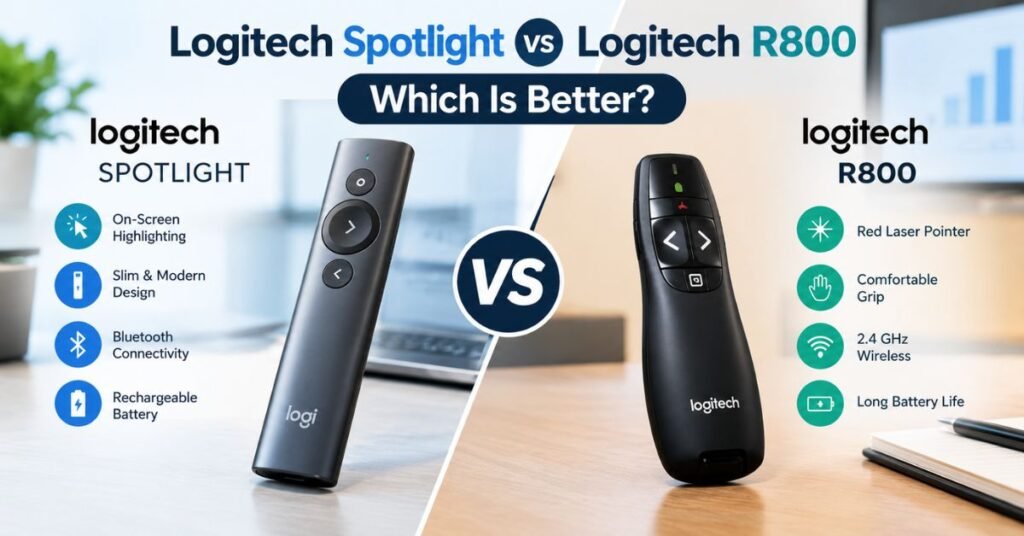
These two models top many lists of the best presentation remotes. Both come from a brand known for steady gear. Yet they take different paths. The Spotlight leans on digital tools. The R800 leans on a classic laser and a handy screen. This Logitech Spotlight vs R800 comparison breaks the choice into seven parts. Each part uses plain facts you can check.
Start with the table, then read the details. Specs can change by region and production run. Confirm each point on Logitech’s official site before you buy.
| Feature | Logitech Spotlight | Logitech R800 |
| Pointer | On-screen highlight, magnify, and circle | Red laser |
| Connection | Bluetooth or USB receiver | USB receiver (2.4 GHz) |
| Power | Rechargeable battery | AAA battery |
| Display | None | LCD with time and timer |
| Timer alert | Vibrates | Vibrates |
| Typical price | Around $100 to $130 | Around $80 to $100 |
Logitech Spotlight Features and Performance
The Logitech Spotlight presentation remote has three buttons. Two move slides. The middle one starts the highlight tool. You can also set magnify and circle modes in Logitech’s software. These tools help your audience see what matters. The timer buzzes in your hand at set points, such as five minutes left. In my testing notes from a reviewer’s view, some users find the buttons touchy. That can cause an accidental slide jump. A little practice fixes most of it. Overall, it’s a sleek, tool-rich wireless presenter.
Logitech R800 Features and Performance
The Logitech R800 presenter takes the classic route. You get a bright red laser and clear slide buttons. A slideshow start key and a blackout key sit close by. The standout is the LCD screen. It shows the time and your timer at a glance. The device buzzes when your time ends. Many speakers like the firm buttons, which feel hard to press by mistake. It also works as a PowerPoint slide advancement remote with no fuss. Fans call it a tough, honest tool for steady speakers.
Design, Comfort, and Ease of Use
Comfort matters when your talk runs long. The Spotlight is slim and smooth. It fits a small hand well. The R800 is larger and a bit chunkier. Many people find it easier to grip. Ergonomic remote design also means your thumb finds each key without looking. Tactile presentation buttons help here. The R800’s firmer keys give clearer feedback. The Spotlight’s lighter keys feel quicker but also easier to hit by mistake. Pick the feel that suits your hand.
Wireless Range and Compatibility
Both remotes offer a wireless operating range of about 30 meters, or around 100 feet, under good conditions. That’s enough for most halls. A wireless presenter with long-range connectivity matters in big rooms. Walls and crowds can shorten the real range. For compatibility, each works as a presentation remote for Mac and Windows. Both also cover PowerPoint compatibility, Google Slides compatibility, and Apple Keynote compatibility in most cases. Highlight tools may need Logitech’s software. Check your operating system version on the product page.
Laser Pointer vs. On-Screen Highlighting
Here’s the biggest difference. The R800 gives you a physical dot. The Spotlight gives you a digital one. A laser is simple and works on any wall. Yet it can fade on glossy or LED screens. On-screen highlighting stays crisp on the display. It also shows up in recorded talks and video calls. That makes a presentation remote with on-screen highlighting better for hybrid events. Still, some people simply prefer a real dot. Think about your typical room before you decide.
Battery Life and Connectivity
Presentation remote battery life can make or break a day. The Spotlight uses a rechargeable presentation remote design. You charge it by cable and get weeks of use per charge. A short top-up can also last through one talk. The R800 uses a replaceable AAA battery. That’s easy to swap in a pinch. For connection, the Spotlight offers Bluetooth plus a receiver. The R800 sticks with a presentation remote with USB receiver. Many pros trust receivers for steady links in busy rooms.
Price and Overall Value
The Spotlight usually costs more. The R800 sits a bit lower, though stock can be hard to find. Both are pricey next to basic clickers. Is the Logitech Spotlight vs Logitech R800 comparison a clear win for one side? Not really. Choose the Spotlight if you want modern tools and a rechargeable build. Choose the R800 if you want a trusted laser and a handy timer screen. If money is tight, the R500 is a sensible third path.
Why Professional Presenters Choose Dedicated Presentation Remotes
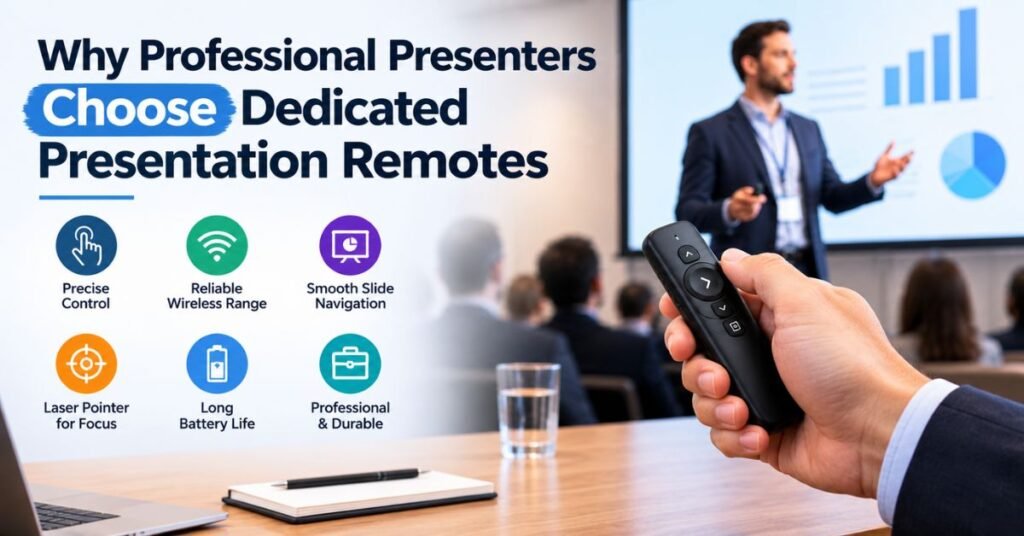
Why do pros skip phones and air mice? Because stage time is precious. A dedicated remote has one job. It does that job well. You feel each press and trust each result. That calm lets you focus on your message. The same reason explains why do professional presenters use dedicated remotes in nearly every big event. They want fewer risks and fewer surprises.
Here’s a short scenario. A speaker at a business keynote presentation used a phone app. A call came in on slide four. The screen froze for a long beat. The next day, the same speaker switched to a plain clicker. No call could interrupt it. The talk ran smoothly. That story shows why features of professional presentation remotes center on stability. Strong range, firm keys, and a steady link come first. Fancy extras come second.
Read More: Thealite Keep Safe Complete Guide to Features Setup And Photo Vault Security 2026
Benefits of Physical Buttons and Tactile Feedback
Physical buttons let you advance slides without a glance. Your thumb learns the layout fast. You keep eye contact with the audience. A touch screen can’t match that feel. It may also register stray taps. Tactile presentation buttons give a clear click so you know the slide moved. This matters most on dark stages. It also helps when your hands are nervous. Good feedback builds confidence, and confidence shows in your voice.
Why Some Professional Remotes Have a Bulky Design
Bulky remotes look old school. Yet the size has a purpose. A bigger body fits a stronger radio and a larger battery. It also holds big keys that are tough to miss. Many stage-ready units use RF wireless technology for a stable link. Bulk can also help shaky hands. A thicker grip feels steadier than a thin stick. For conference room presentations and large halls, those gains often outweigh a sleek look.
Why Many Premium Remotes Avoid Traditional Laser Pointers
Premium remotes often skip the laser on purpose. Lasers fade on LED walls and glossy screens. The dot can wobble and distract the crowd. Safety rules also limit laser use in some venues. Digital pointers solve these issues. A highlight sits on the slide itself. It’s easy to see from the back row. Cameras capture it clearly too. For these reasons, a presentation pointer built into software now beats the old red dot at many events.
Pros and Cons of Using a Presentation Remote
A remote gives you freedom. You can leave the podium and walk with your audience. Your posture improves and your eye contact grows. The slides advance on time without awkward pauses. You also look more polished. A good presentation remote control can add timers, highlights, and blackout keys for extra control. These small gains add up over a whole talk.
Of course, remotes have limits. Batteries can die. Signals can drop in crowded rooms. Cheap models may lag or lose pairing. Some cost more than you’d expect. A short test run before each talk solves most problems. The table gives the quick view.
| Pros | Cons |
| Freedom to move on stage | Battery needs care |
| Better eye contact | Signal can drop in busy rooms |
| Polished, confident look | Premium models cost more |
| Timer and highlight tools | Learning curve for new tools |
How to Choose the Best Presentation Remote
Wondering how to choose a presentation clicker? Start with your room and your goal. A small office needs little range. A large hall needs more. A hybrid event needs digital highlighting. Then match the remote to your software and budget. Four checks cover nearly every case. Work through them in order and you’ll land on the right pick.
Use this quick guide as a checklist. Each row points to the next section for details.
Read More: Diamond Face Shape Hairstyles for Men 28 Best Cuts to Try in 2026
| Check | Ask Yourself |
| Compatibility | Does it work with my slide app and computer? |
| Range and link | Is the signal strong enough for my room? |
| Controls | Do I need a pointer, timer, or blackout? |
| Power and price | Can I live with the battery and cost? |
Check Compatibility with PowerPoint and Google Slides
Start with software. Most remotes work as a remote control for PowerPoint because they send standard keystrokes. Check presentation remote compatibility with Google Slides too. Some features, like highlight tools, depend on extra software. Confirm support for your computer, whether Windows, macOS, or Chromebook. A presentation remote for Mac and Windows is the safest bet if you switch devices. Read the product page, or see Microsoft’s PowerPoint help and Google’s Slides help for app basics.
Consider Wireless Range and Connection Type
Next, think about space and signal. A presentation remote with wireless connectivity should reach the back of your room. A range near 30 meters suits most halls. Then pick the link type. Bluetooth is neat because it needs no dongle. A USB receiver often feels steadier in crowded rooms. If you use a thin laptop with few ports, Bluetooth saves hassle. If you present in busy venues, a receiver adds comfort.
Look for Useful Presentation Controls
Think about the tools you’ll really use. A timer helps you stay on schedule. A blackout key pauses the screen when you want attention on you. Highlight and magnify modes help with charts. A laser pointer helps in small rooms. Presentation software shortcuts can also map to extra buttons. Avoid paying for tools you’ll never use. A simple tool you trust beats a fancy one you fear.
Compare Battery Life, Comfort, and Price
Finally, weigh power, feel, and cost. A rechargeable design saves money over time. A standard battery is easier to swap on the road. Hold the remote if you can. A comfortable grip matters during a long talk. For price, set a limit first. Cheap options work for casual talks. Pros should spend more for steady links and better build. Whatever you choose, test it once before your big day.
Read More: Heart Face Shape Hairstyles for Men: 20 Best Cuts to Try in 2026
Frequently Asked Questions
What Is the Best Presentation Remote for PowerPoint?
The best remote for PowerPoint presentations depends on your needs. For stage use, the Logitech Spotlight is a top pick because of its range, timer, and highlighting. For simple and low-cost use, a Logitech R500 or similar clicker works well. Any PowerPoint clicker that sends standard keystrokes will function. For Mac fans, the best presentation remote for MacBook is one that offers Bluetooth or a USB-C adapter.
Can You Use Your Phone as a Presentation Remote?
Yes, you can. Install the slide app, link by Bluetooth or Wi-Fi, and tap to move slides. It’s free and always with you. However, calls and alerts can interrupt your talk. Battery drain is also a risk. Turn on do-not-disturb mode first. For key events, bring a physical backup. That is the safest way to use a smartphone presentation remote.
Are Air Mice Good for Presentations?
They can be, in the right job. An air mouse remote shines during demos where you click through apps. It gives you full cursor control from afar. However, it can feel twitchy for simple slide shows. In the presentation clicker vs air mouse debate, clickers win for ease and air mice win for flexibility. Practice before you go live.
Do Presentation Remotes Work with Smart TVs?
Sometimes. A USB clicker often works if the TV runs slides through a connected laptop. Casting setups can also respond to a remote. However, many smart TVs don’t accept slide keystrokes directly. A smart TV remote for presentations may only control the TV itself. Test your exact setup first. If the TV fails, plug in a laptop and use a normal clicker.
Is the Logitech Spotlight Better Than the R800?
It depends on you. The Spotlight offers digital highlighting, a rechargeable battery, and Bluetooth. The R800 offers a laser, a timer display, and firm buttons. For hybrid events and screen shares, the Spotlight leads. For small rooms and classic style, the R800 holds its own. Neither is the winner for everyone.
Final Thought
Great talks need great control. The best presentation remotes keep you free, calm, and in command. Pros should look at the Spotlight or a similar professional presentation clicker. Teachers and students can pick a simple, tough clicker. Online hosts should favor digital highlighting. Budget buyers will do well with an entry-level model.
So pick one that fits your room, your software, and your wallet. Then practice with it before the big day. Check the battery, test the range, and carry a spare. Do that, and your slides will follow your voice instead of the other way around.

Ryan Carter is a men’s hairstyle and grooming writer who shares the latest haircut trends, styling ideas, and practical tips to help men find a look that suits their style and personality.